
How to update customer details in AquaDirect
You can now update your address and contact details in AquaDirect. There is no fee for this service.
The Department will check the updates you submit and contact you if there are any issues (for example, you have entered a PO Box for the physical address).
To update your address and contact details, log into AquaDirect.
On the main menu, click on My Account Profile, then click on Update Contact Details.

Update your address
1. Select the customer whose address details you need to update.
2. Click on the address details card.

3. You can update any or all the following:
- Billing address – where financial-related correspondence may be sent.
- Physical address – must be a street address, preferably the address of the aquaculture business.
- Mailing address – where all correspondence relating to your aquaculture business may be sent.
4. The billing address is the first one listed.

5. If needed update your billing address.
6. If you would like the billing address to also be used for your physical and mailing addresses, click on the “use billing address” toggle next to these.

7. If you do not want to update your billing address but need to update the physical or mailing address, click Edit.
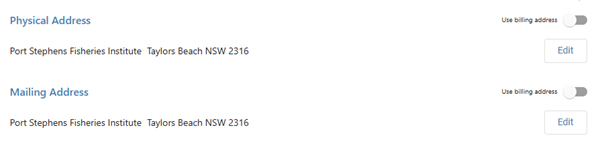
8.Once all address details have been updated, click Update Details.

9. If you also need to update your contact details, this can be done in the same transaction. Click on the Contact details card (instructions below). Otherwise click Submit updates.

10. Review the declaration, tick the box that you understand all statement, then click Proceed.


11. The next screen will show you all the updates you have made. Check these, then hit Confirm updates.


12. You can copy a receipt of the transaction to your clipboard.

Update your phone and email
1. Select the customer whose contact details you need to update.
2. Click on the contact details card.
3. This screen shows you the contact details currently on file, including:
- Mobile phone
- Landline (work)
- Landline (home)

4. To update an existing contact:
- Click on Edit.
- Make the necessary changes.
- If you edit a mobile phone contact, you can click SMS to receive SMS alerts.
- Click Update contacts.


5. To delete an existing contact:
- Click on Edit.
- Click on Delete.
- Confirm that you want to delete the contact.
- Click Update contacts.
6. To add a new contact:
- Click on + Add new contact.
- Scroll down to the bottom of the contact list. You will see blank fields for the new contact. All fields are mandatory.
- Add in the new contact details. If you add a mobile number, you must select Mobile as the contact type. If you add a landline, you can select either landline (work) or landline (home).
- Click Update contacts.

7. To change your preferred contact:
- You must have one preferred contact at any given time.
- Click on Edit for the contact that is currently the preferred contact.
- Untick the Preferred contact box.
- Scroll down to the contact that you want to make the new preferred contact. Click Edit.
- Click the preferred contact box.
- Click Update contacts.

8. Click on Submit updates.
9. Review the declaration, tick the box that you understand all statement, then click Proceed.
10. The next screen will show you all the updates you have made. Check these, then hit Confirm updates.
11. You can copy a receipt of the transaction to your clipboard.